

Table of Contents
A2B Manager doesn’t have a setting that limits a competition to children from certain classes. You can get the same result with an award level. Give the award to the children in your squad, then make the competition require it. Children without the award can’t book. This guide also shows you how to stop boys booking a girls’ event, and how to remove and refund a booking that shouldn’t have been made.
Before you start #
- You need an award level for the squad, for example WAG squad. If you haven’t made one yet, see How to add an award syllabus.
- Your competition should be set up as a Multi Event group. See How to Set Up a Multi-Event Class.
- You do all of this as a club admin.
How it works #
Step 1: Why there’s no ‘certain classes only’ setting (0:00) #
- There’s no option to say ‘only children in these classes can book’.
- Award levels do the same job. You give an award level to the children in your squad. Then you set the competition so that only children who hold that award can book it.
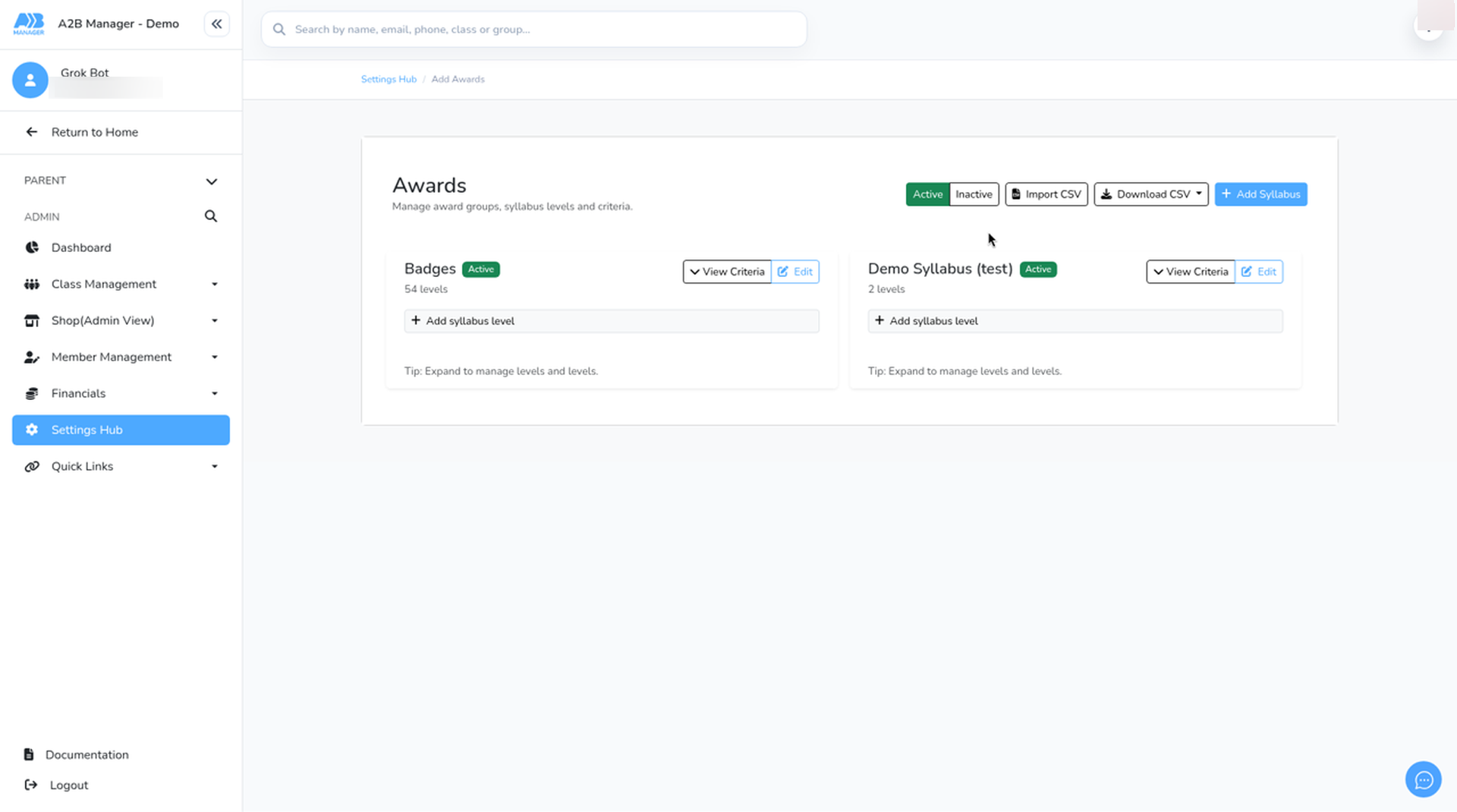
- You make award levels in Settings Hub > Add Awards.
Part 1: Give the award to your squad #
Step 2: Give the award to new squad members (0:13) #
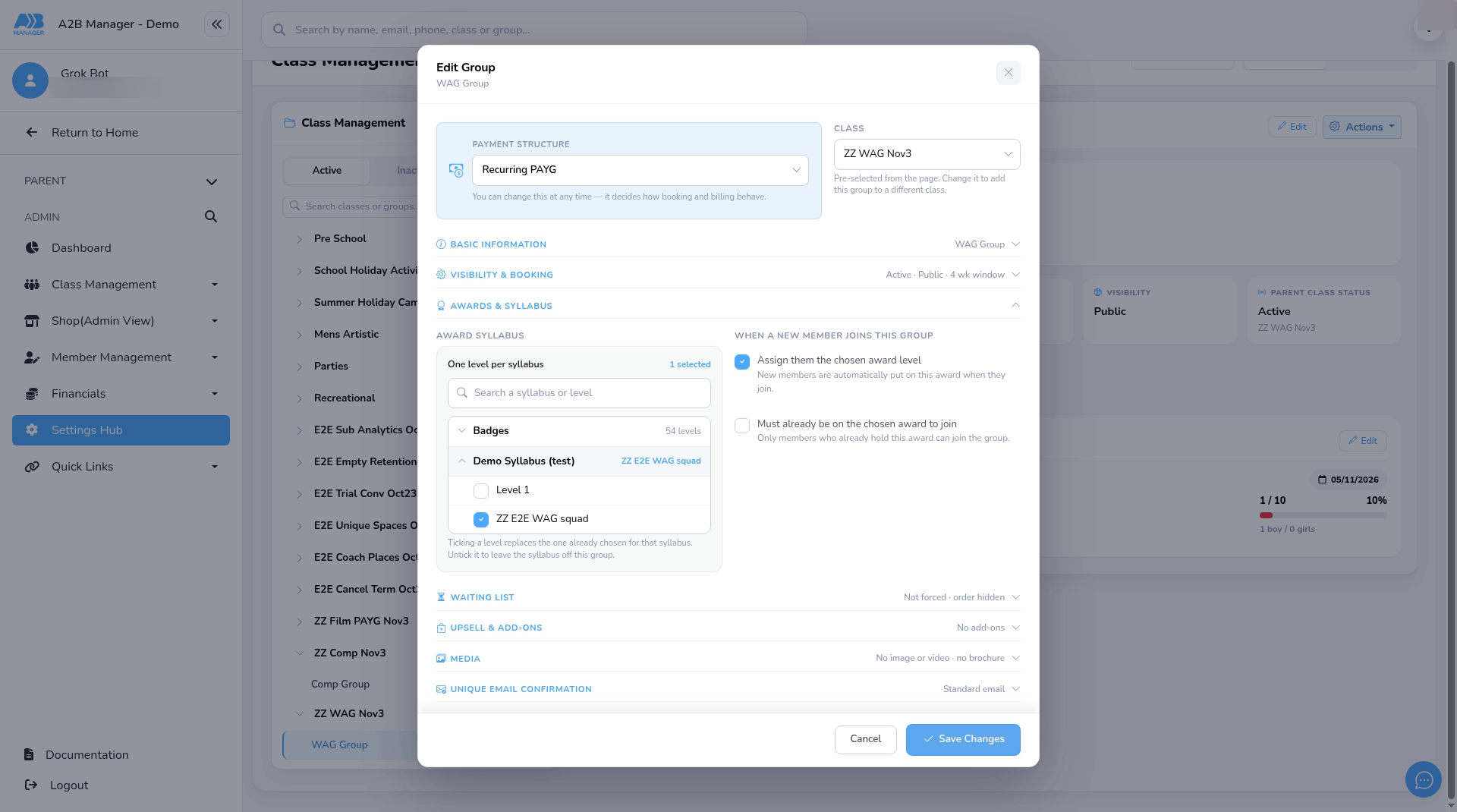
- Go to your squad’s class, click its group, then click Edit.
- Open Awards & Syllabus. Under Award Syllabus, open your syllabus and tick the squad’s award level.
- Under When a new member joins this group, tick Assign them the chosen award level.
- Click Save Changes. From now on, children who join this group get the award automatically.
- If you have more than one squad group, do this on each of them.
Step 3: Give the award to children already in the class (0:59) #
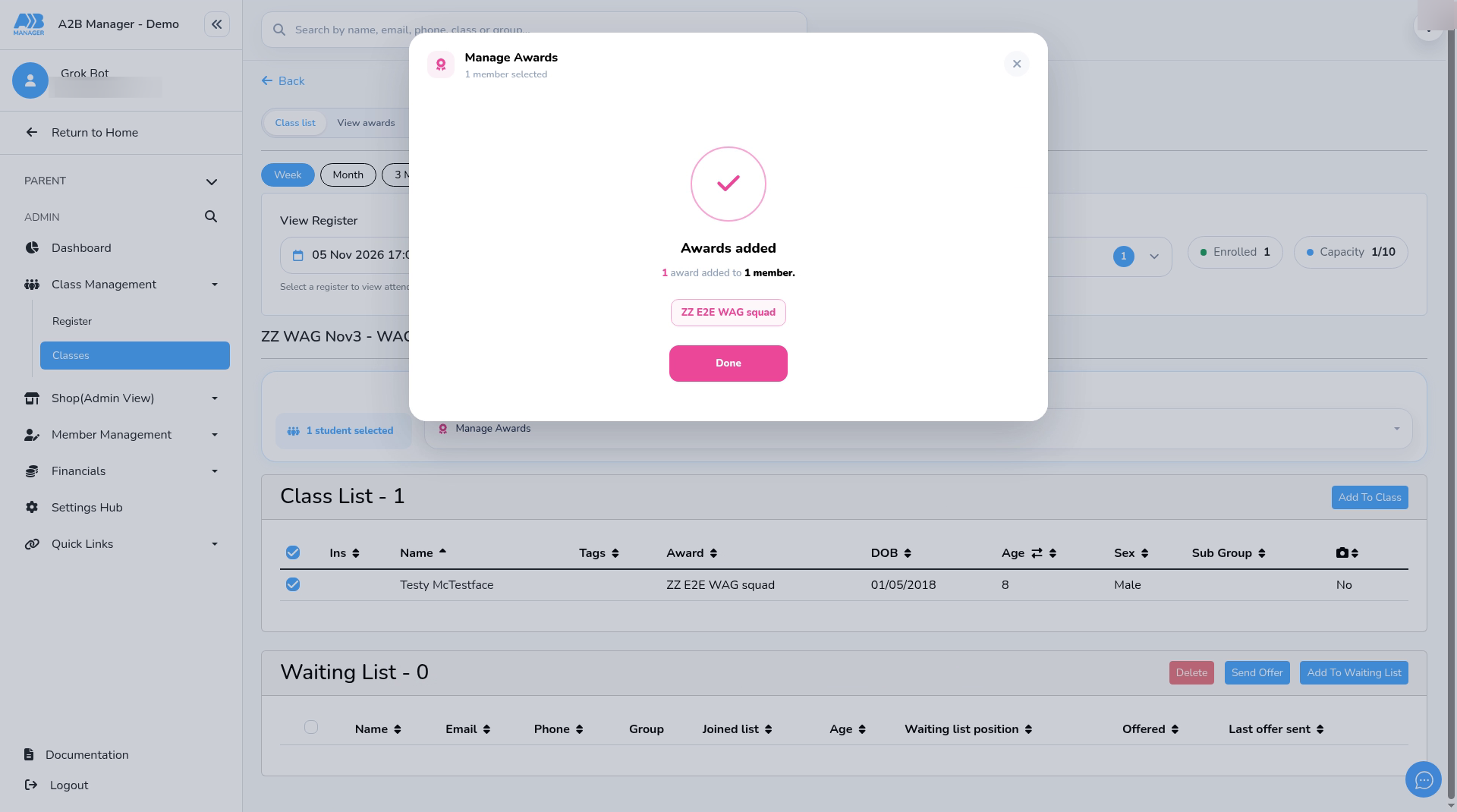
- Children who were already in the group don’t get the award when you turn this on. Add it to them with Manage Awards.
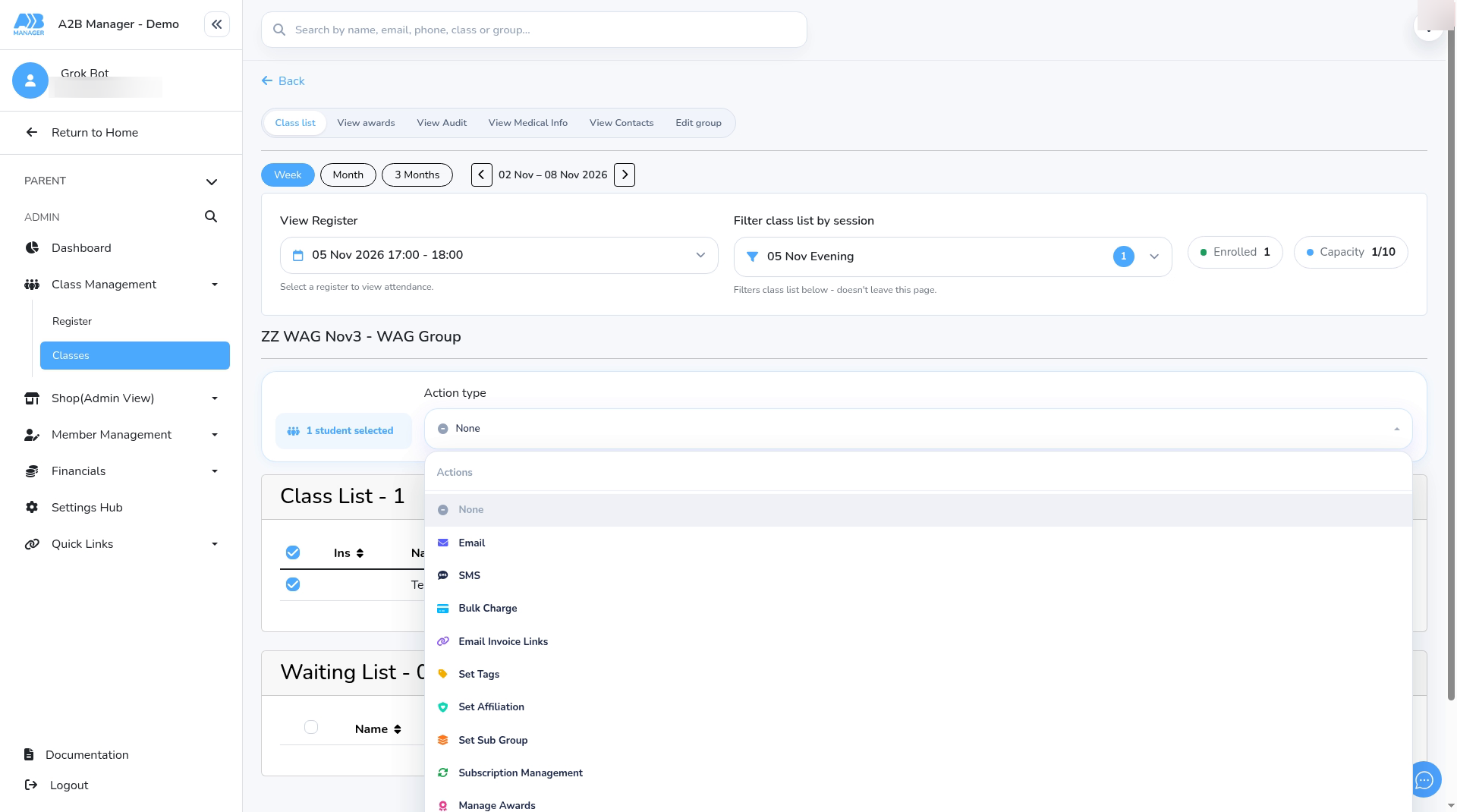
- On the group, click Actions > Go to class list.
- Tick the children who need the award. Open Action type and choose Manage Awards.
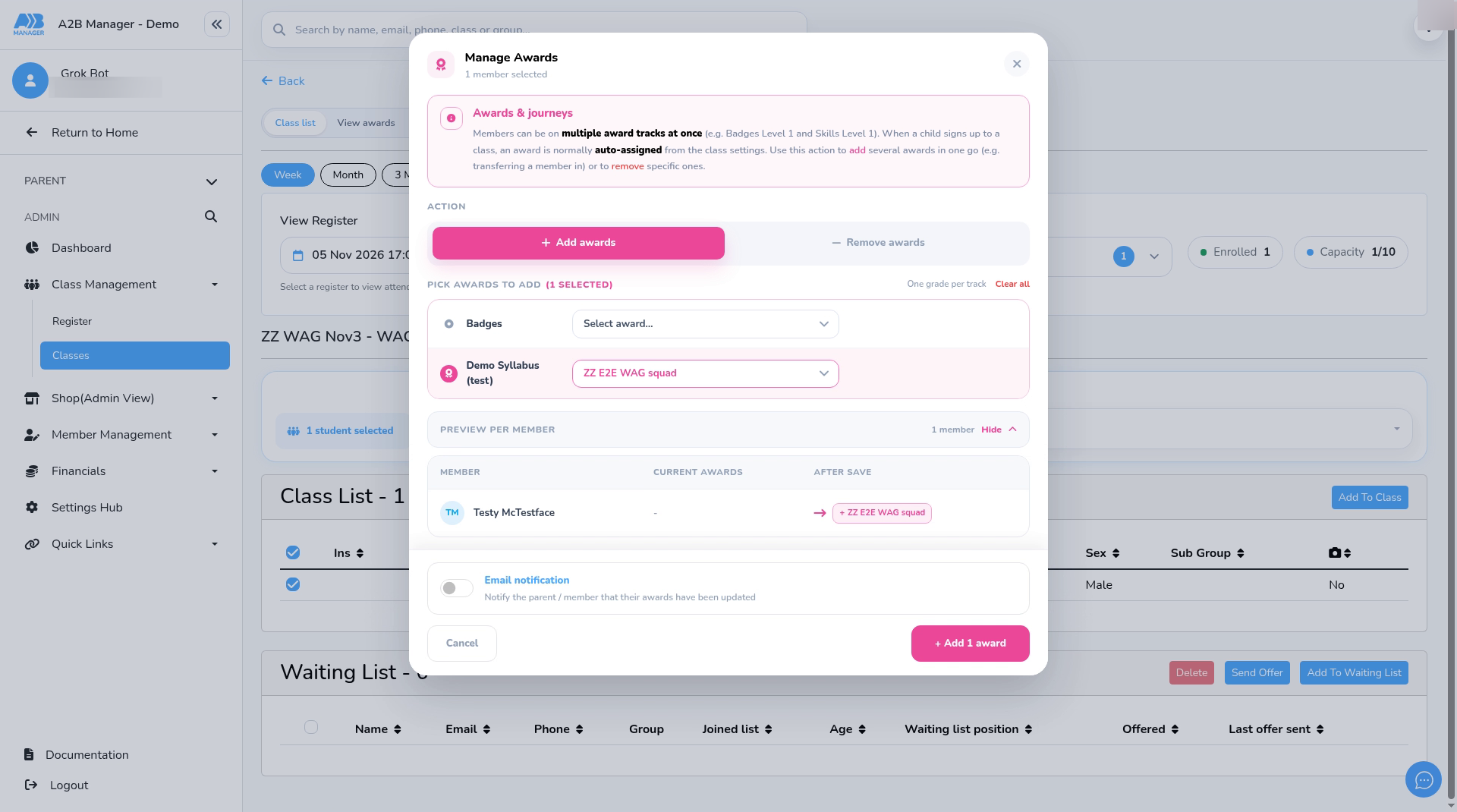
- On the Add awards tab, pick the award level next to your syllabus. Click Preview per member to check who’ll receive it.
- Turn on Email notification if you want to tell parents their child’s awards have been updated.
- Click + Add 1 award (the number shows how many awards you’re adding), then Done. For more on this screen, see How to Manage a Member’s Awards.
Part 2: Lock the competition #
Step 4: Make the competition require the award (1:47) #
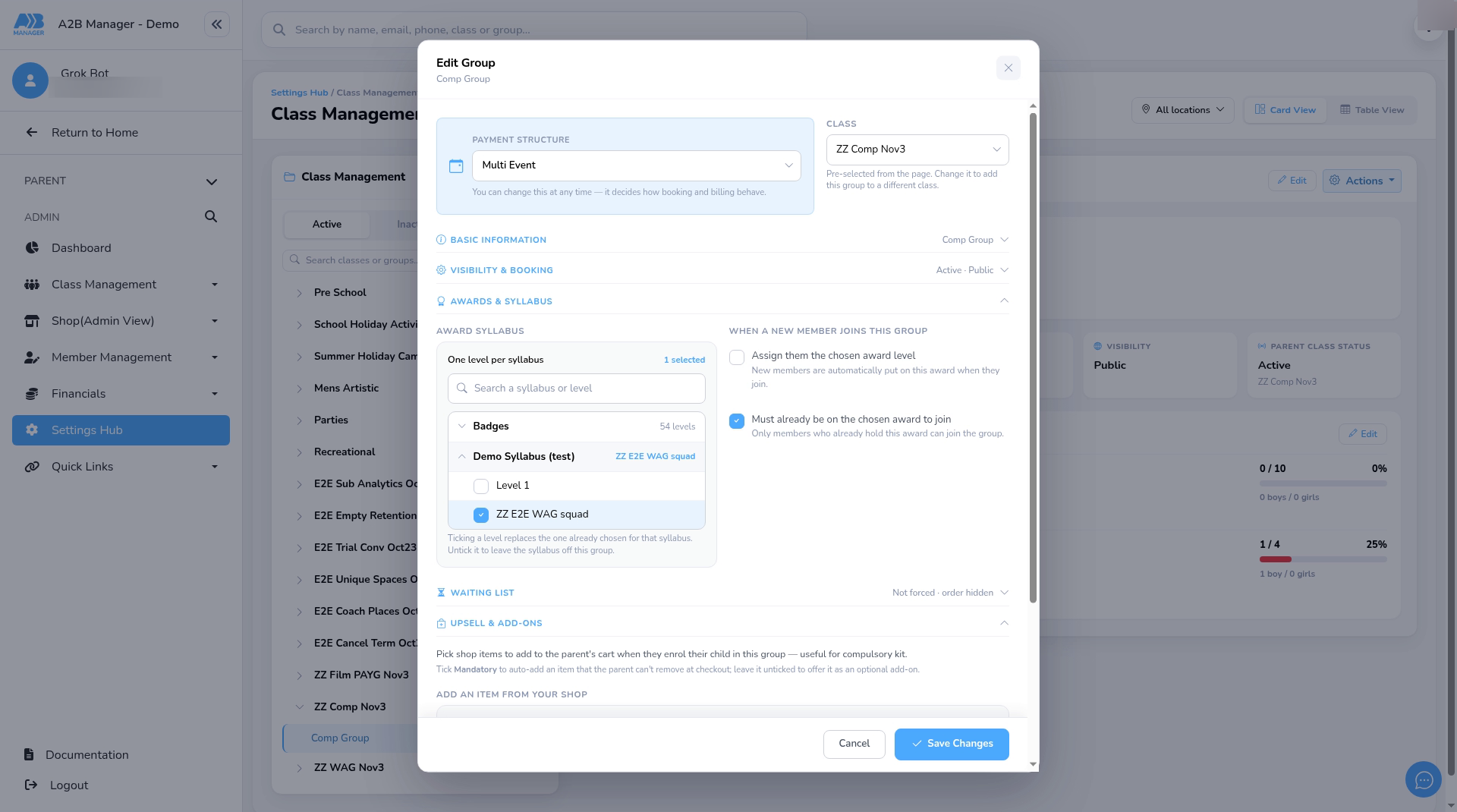
- Go to Settings Hub > Add/Edit Classes. Open the competition’s class, click its group, then click Edit.
- Open Awards & Syllabus and tick the same award level.
- Under When a new member joins this group, tick Must already be on the chosen award to join. The help text explains: Only members who already hold this award can join the group.
- Click Save Changes.
Step 5: Optional: stop boys booking a girls’ event (2:27) #
- There’s no boys-only or girls-only setting, but you can give boys no places on an event.
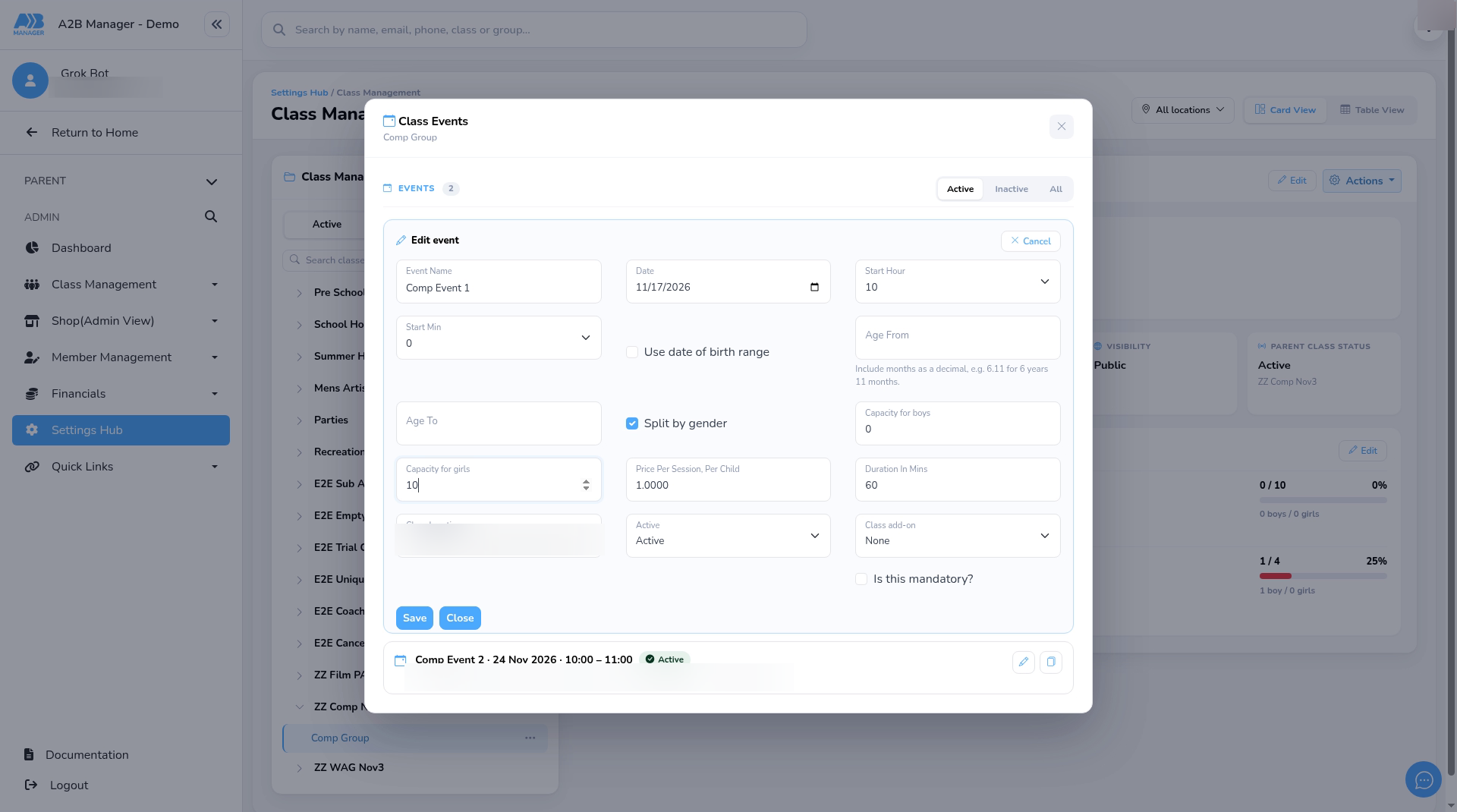
- On the competition’s group, click Edit on the events, then click the pencil next to the event.
- Tick Split by gender. Set Capacity for boys to 0, and Capacity for girls to the number of places you want.
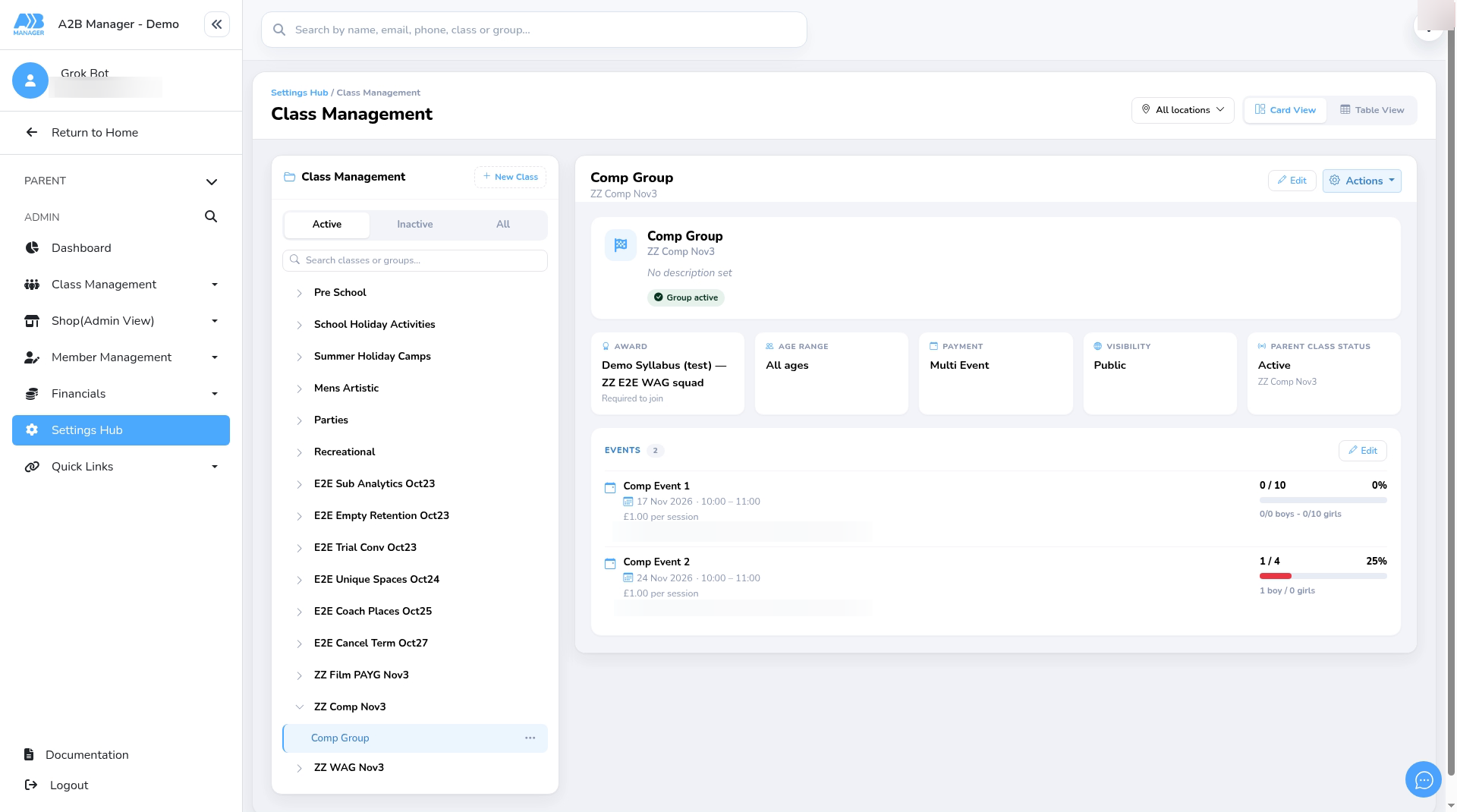
- Click Save, then close the events list. The event now shows 0/0 boys and the girls’ places.
- Boys see the event as Full. Do this on each event that’s only for girls.
What parents see #
Step 6: What the parent sees (2:57) #
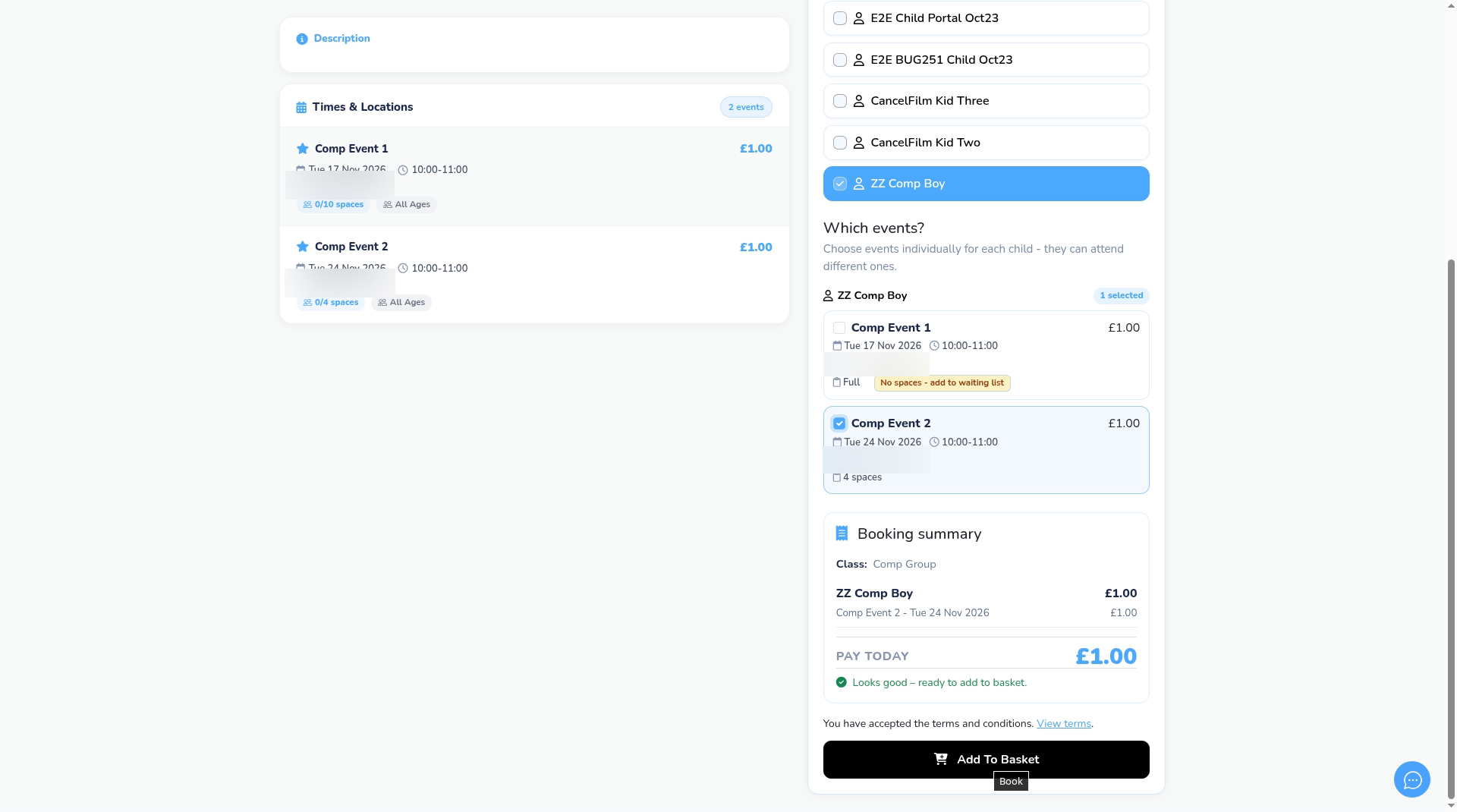
- A parent whose child doesn’t have the award can still open the competition, click Book Events and choose events.
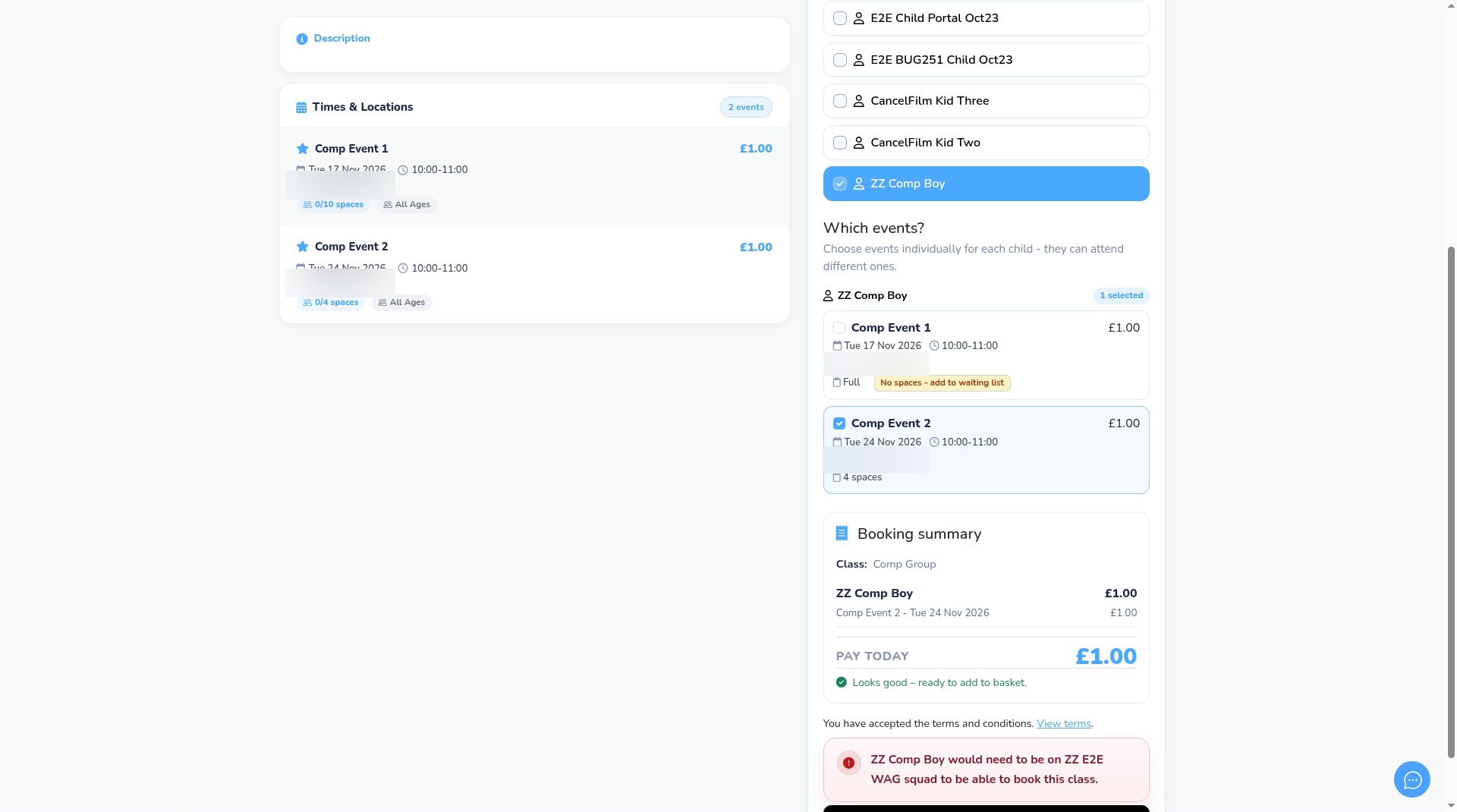
- On a girls-only event, a boy sees Full and No spaces – add to waiting list.
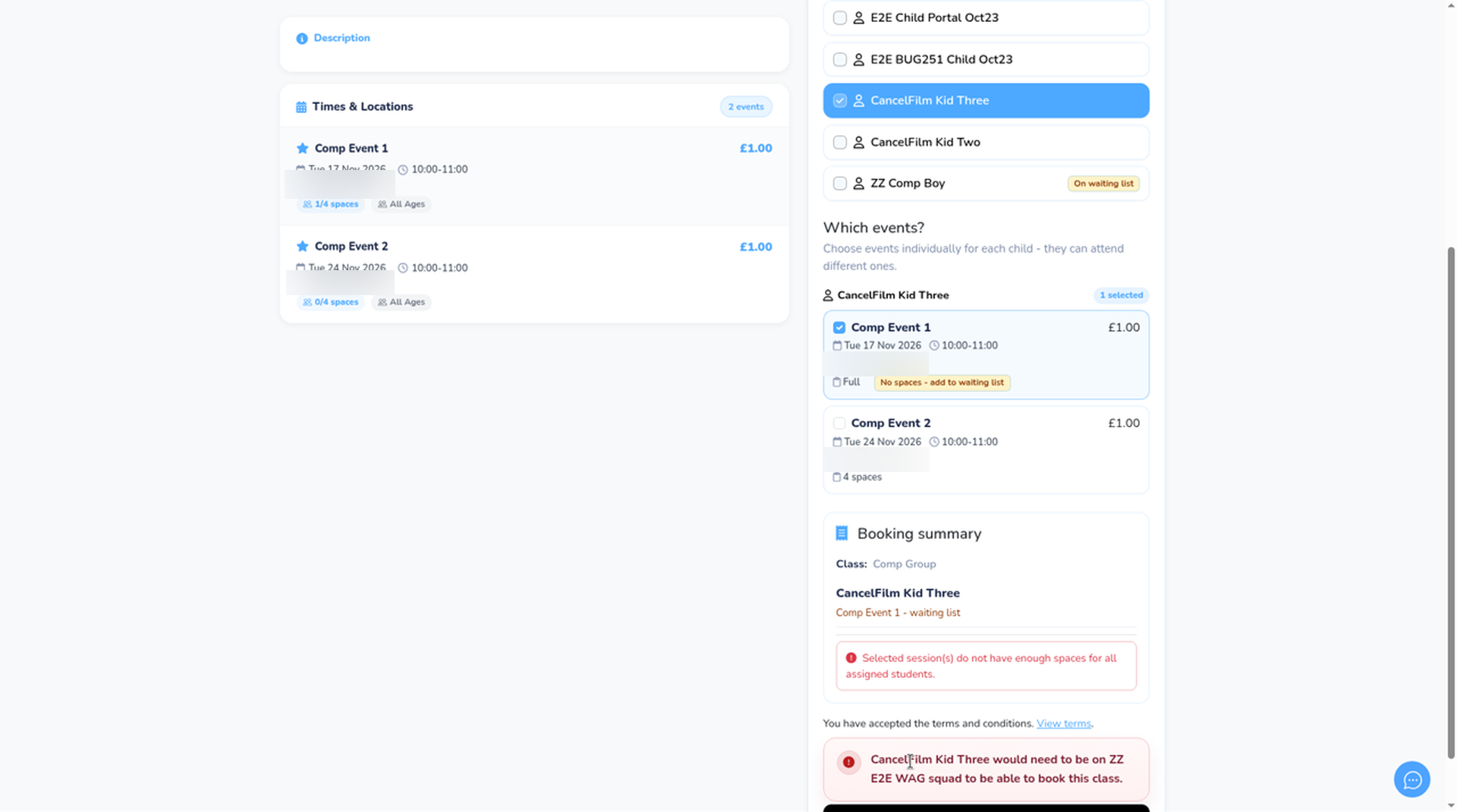
- When the parent clicks Add To Basket, the booking is blocked with a message such as: ZZ Comp Boy would need to be on ZZ E2E WAG squad to be able to book this class.
- Joining the waiting list is blocked in the same way if the child doesn’t have the award.
Fix a booking that shouldn’t have been made #
Step 7: Remove the booking (3:35) #
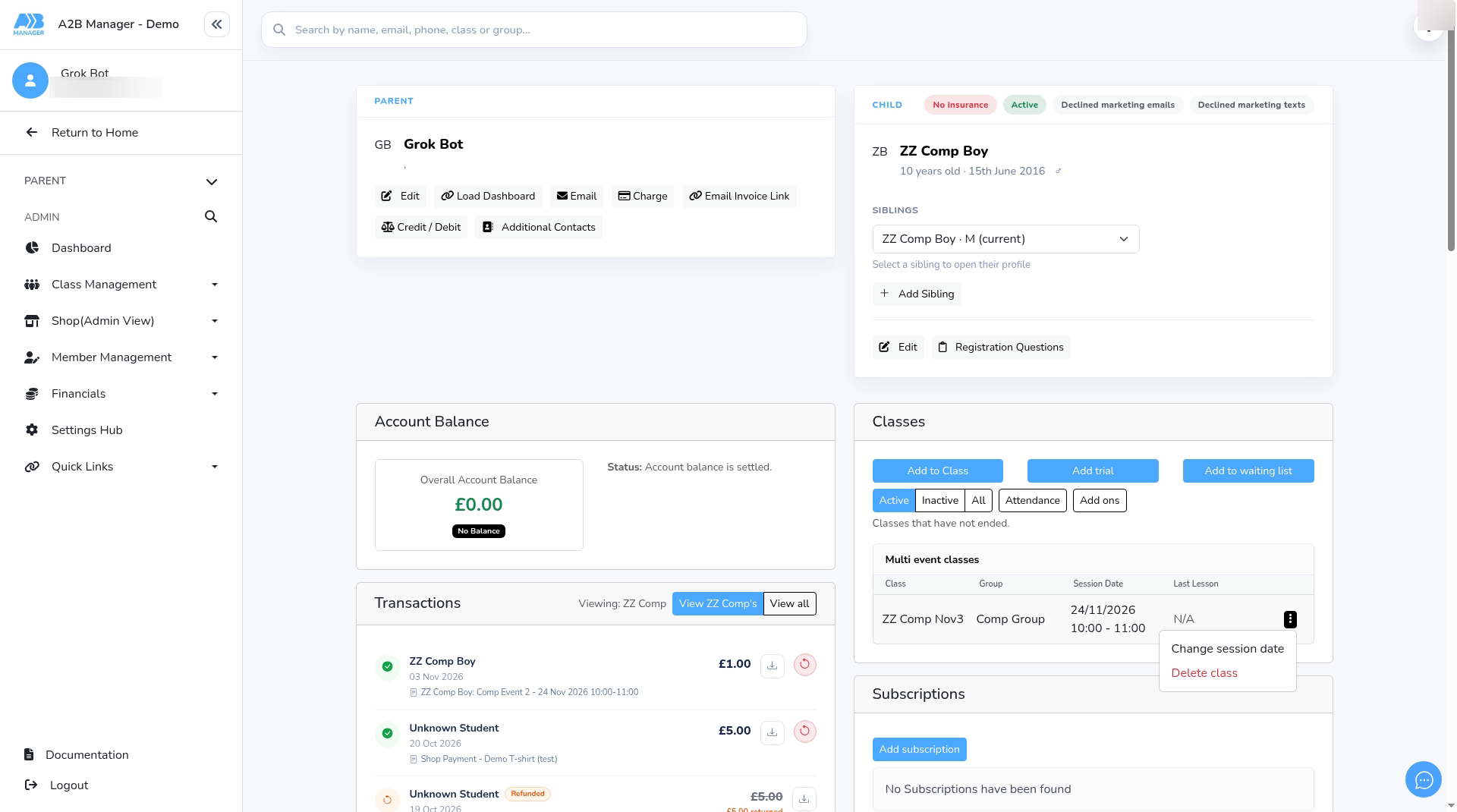
- Open the child’s profile. In the Classes panel, find the competition under Multi event classes.
- Click the ⋮ (three dots) next to it and choose Delete class.
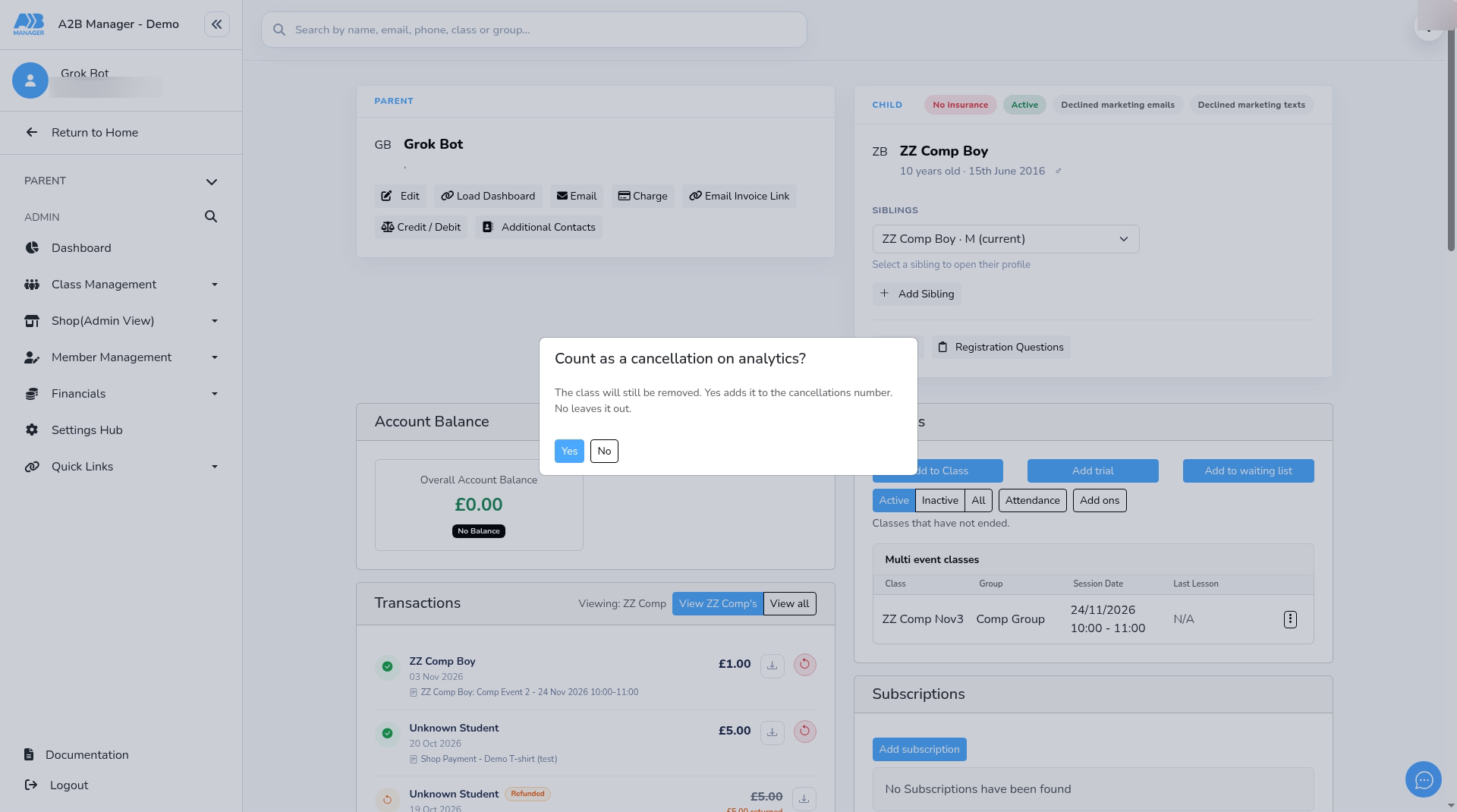
- You’re asked Count as a cancellation on analytics? The class is removed either way. Yes adds it to your cancellations number and No leaves it out.
- The booking is removed and the place is free again. If it was the child’s only class, their profile becomes Inactive.
- Deleting a booking doesn’t refund the payment. Refund it in Step 8.
Step 8: Refund the payment (3:59) #
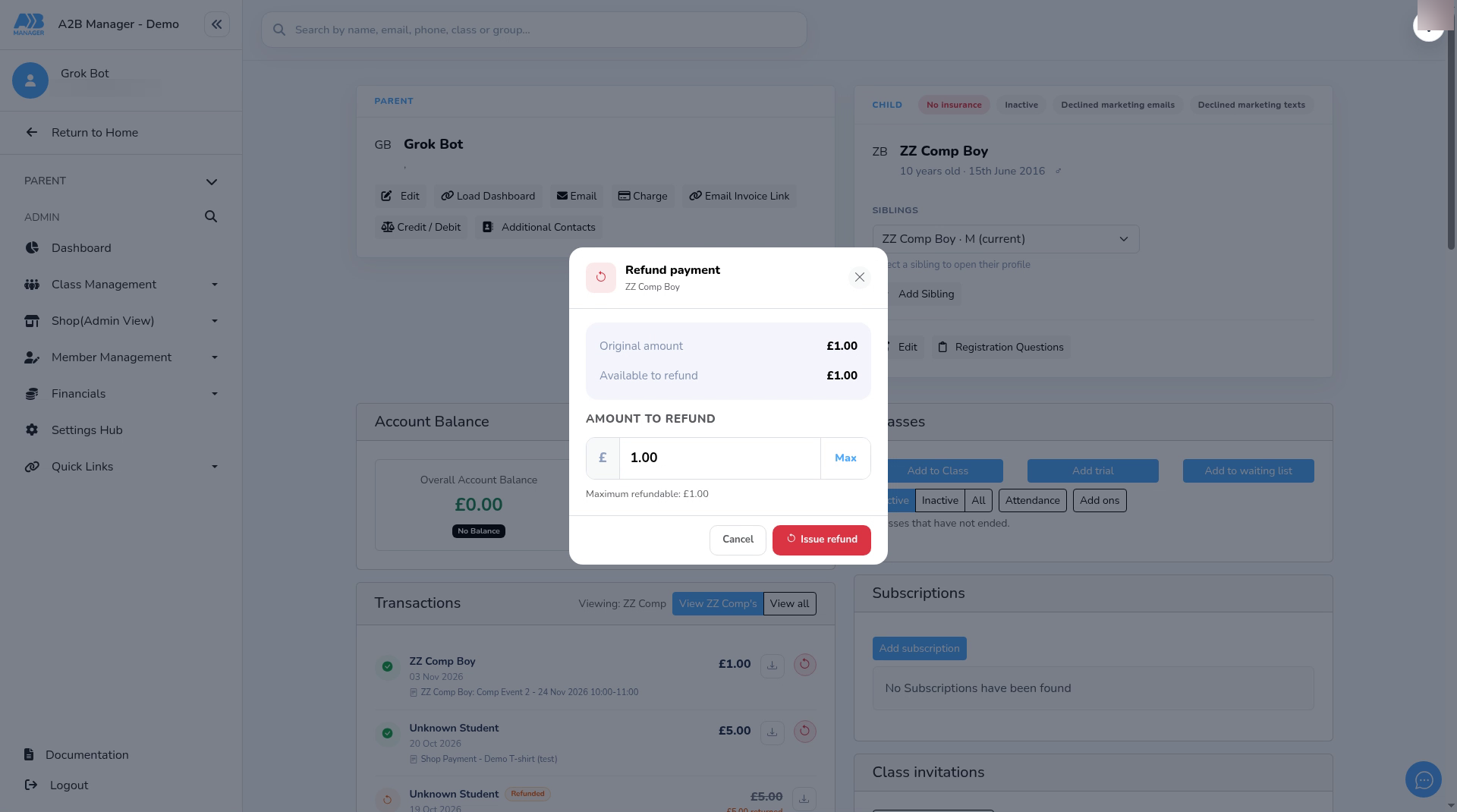
- On the child’s profile, find the payment in the Transactions panel and click its Refund payment button.
- The Refund payment box shows the Original amount and how much is Available to refund. Click Max to refund the full amount.
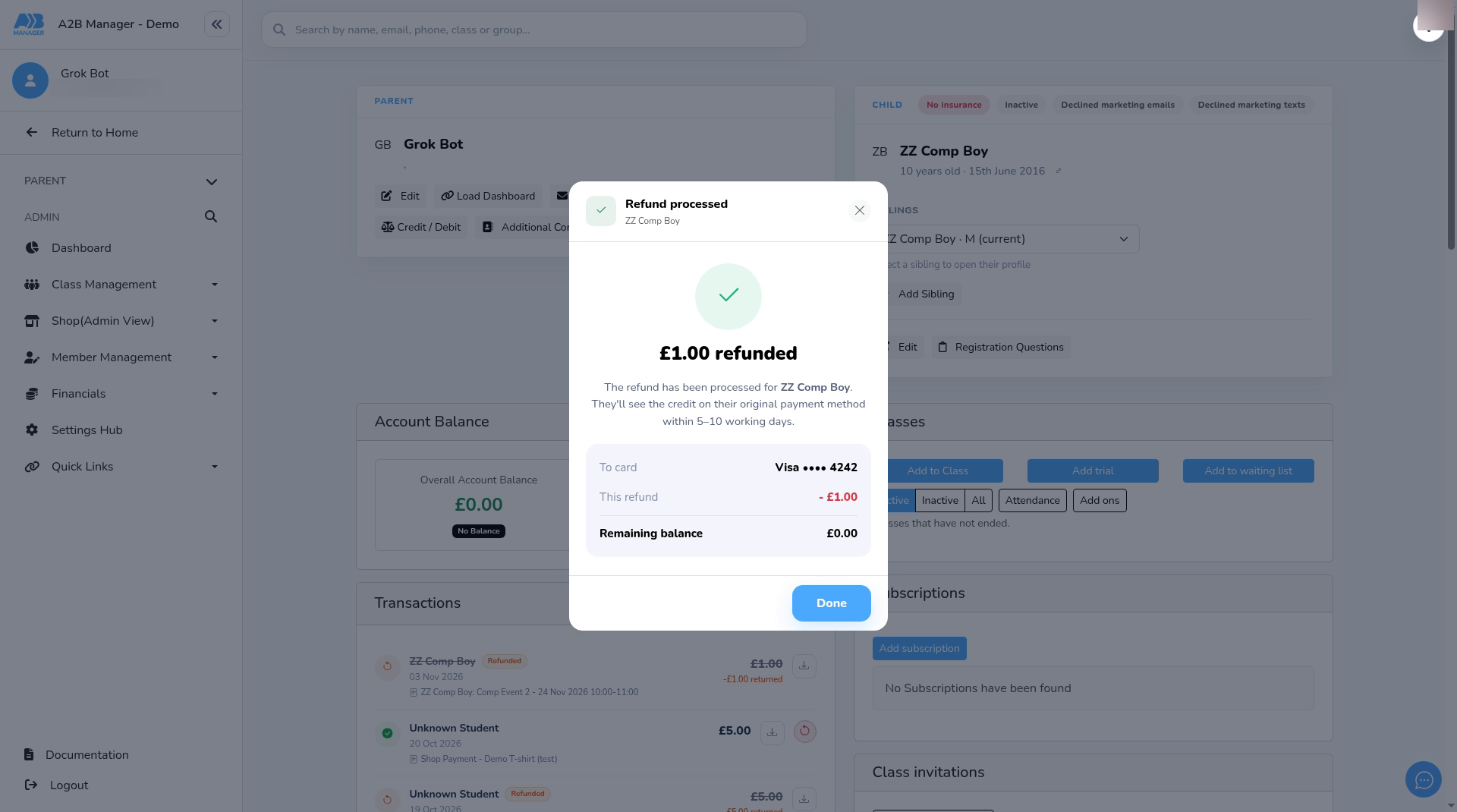
- Click Issue refund. You’ll see Refund processed, with the amount and the card it’s going back to. Then click Done.
- Refunding doesn’t remove the booking. If the child shouldn’t be on the competition, delete the booking too (Step 7).
Good to know #
- The award rule is set on the group, not on each event, so it applies to every event in that group.
- The rule only applies when parents book. When you add a child to the competition yourself, the award isn’t checked.
- Setting a group to Private only hides it from your club’s home page. Anyone with the link can still open it and book, so use the award rule to control who can book.
Tip: Give your squad award a clear name, such as WAG squad. Parents see the award’s name in the message if their child can’t book.


