

Table of Contents
Every card payment you make to the club is listed on your Payments page, with a receipt you can download.
Finding payments and receipts #
Step 1: Open Payments (0:00) #
- Sign in to the club’s booking site.
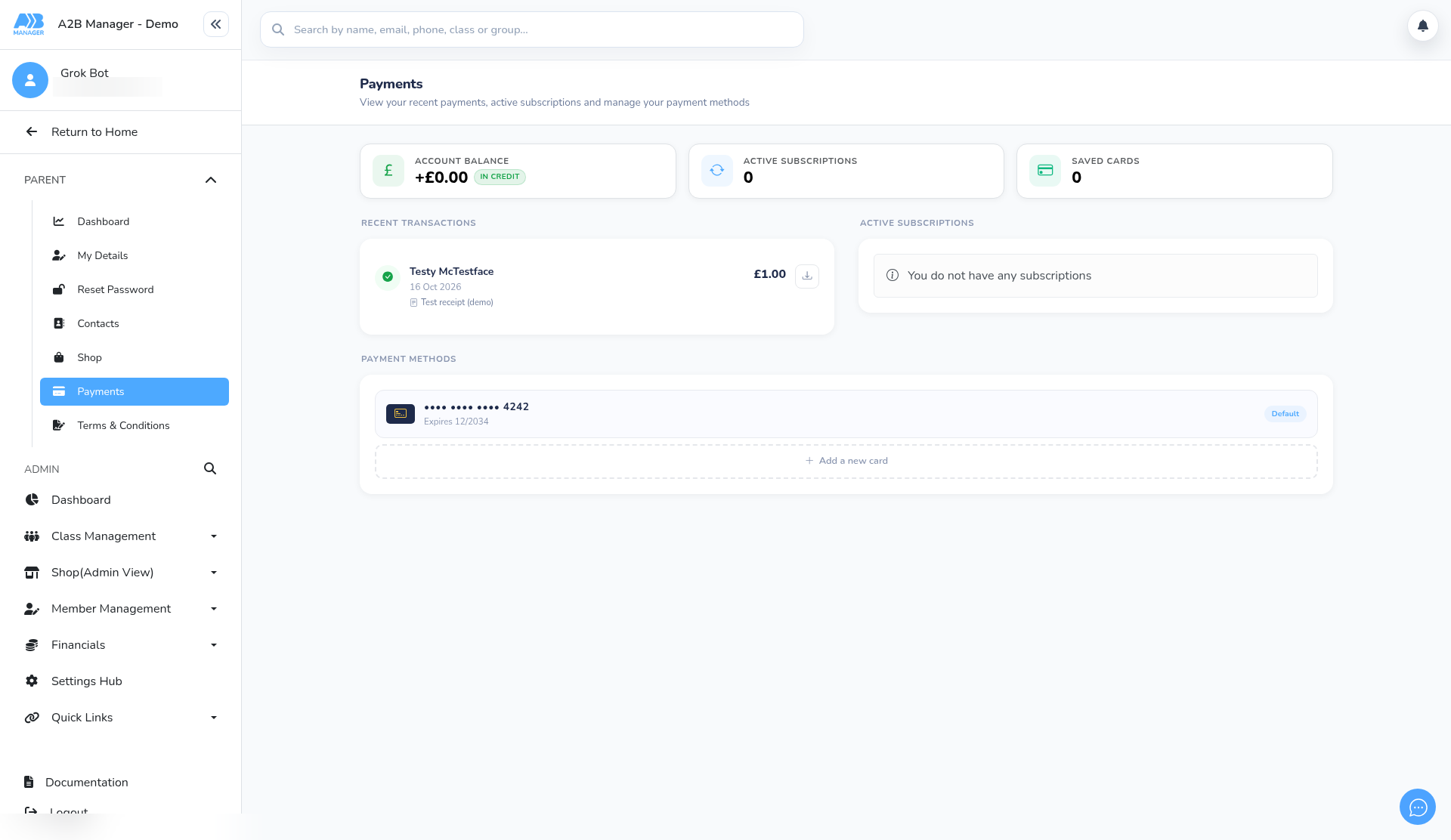
- In the left-hand menu, click PARENT to open that section if it’s closed, then click Payments. The page says “View your recent payments, active subscriptions and manage your payment methods”.
- Account balance shows whether your account is In credit or In debit. A plus amount in credit is held for you and can go towards future fees; a minus amount in debit is what you owe the club. A balance of £0.00 also shows as In credit, which just means nothing is owed.
- Active subscriptions shows how many regular payment plans you have running. They’re listed under Active Subscriptions on the same page.
Step 2: Find the payment in Recent Transactions (0:25) #
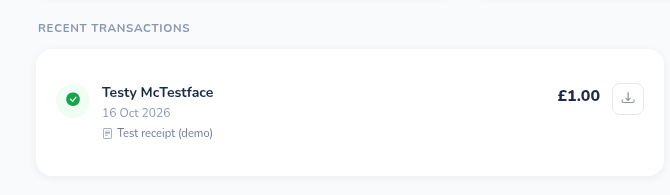
- Look under Recent Transactions. Each payment shows the child’s name, the date and the amount in pounds, with what it was for on the line underneath.
- The newest payments are first. If you have more payments than fit on one page, use the page arrows below the list to see older ones.
- If you haven’t paid anything yet, you’ll see “No charges have occurred”.
Step 3: Download the receipt (0:32) #
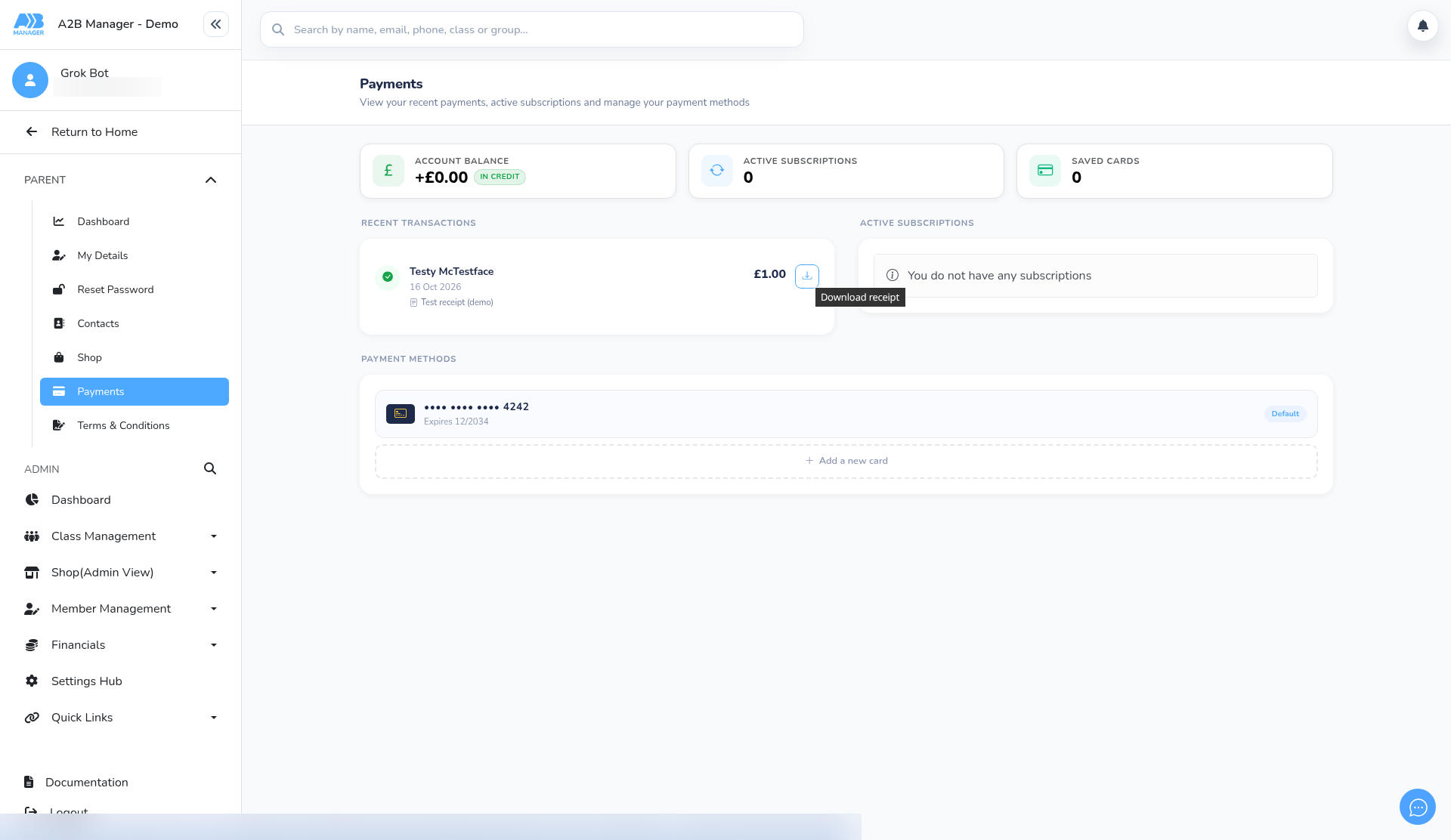
- Click the download icon at the end of the payment (it says Download receipt when you hover over it).
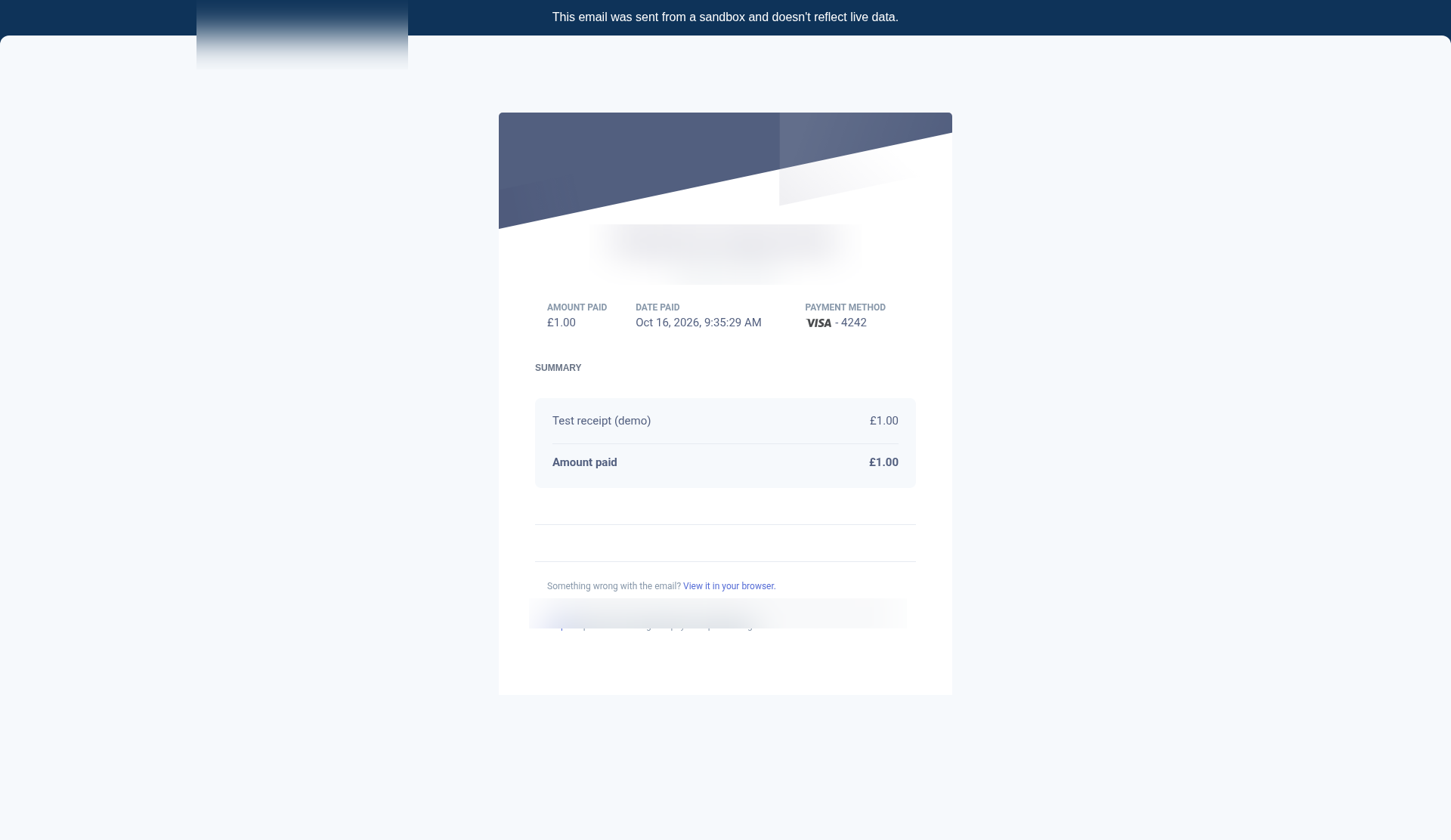
- The receipt opens in a new tab on Stripe, the club’s payment provider (pay.stripe.com). It shows the amount paid, the date paid and the card used.
- To keep a copy, use your browser’s Print option and save it as a PDF, or print it. Then close the tab to go back to Payments.
Step 4: Understand the labels (0:53) #
- Payment failed: the payment didn’t go through. If the reason is available, hover over the label to see it. Failed payments have no receipt. Where it’s offered, you can pay again with the Pay with button for your saved card, or Use a different card.
- Cancelled: the payment was cancelled. Cancelled payments have no receipt.
- Refunded or Partial refund: the amount returned is shown under the price.
- £x credit used: some or all of the payment came from your account credit.
- Paid offline: the club recorded a payment made another way, such as cash or bank transfer.

Good to know #
- If Saved cards shows 0 even though a card is listed under Payment Methods, your card is still saved.
- Only successful payments have a receipt. Cancelled and failed payments don’t.
- Unpaid invoices appear under Outstanding Invoices on the same page. See How parents pay outstanding invoices.
- The app doesn’t send its own receipt email from this page. If the club’s Stripe account sends email receipts, check your junk folder.
- If a payment you made isn’t listed, contact the club.


