

Table of Contents
This is what parents see when they book a trial class for one or more of their children.
Booking a trial #
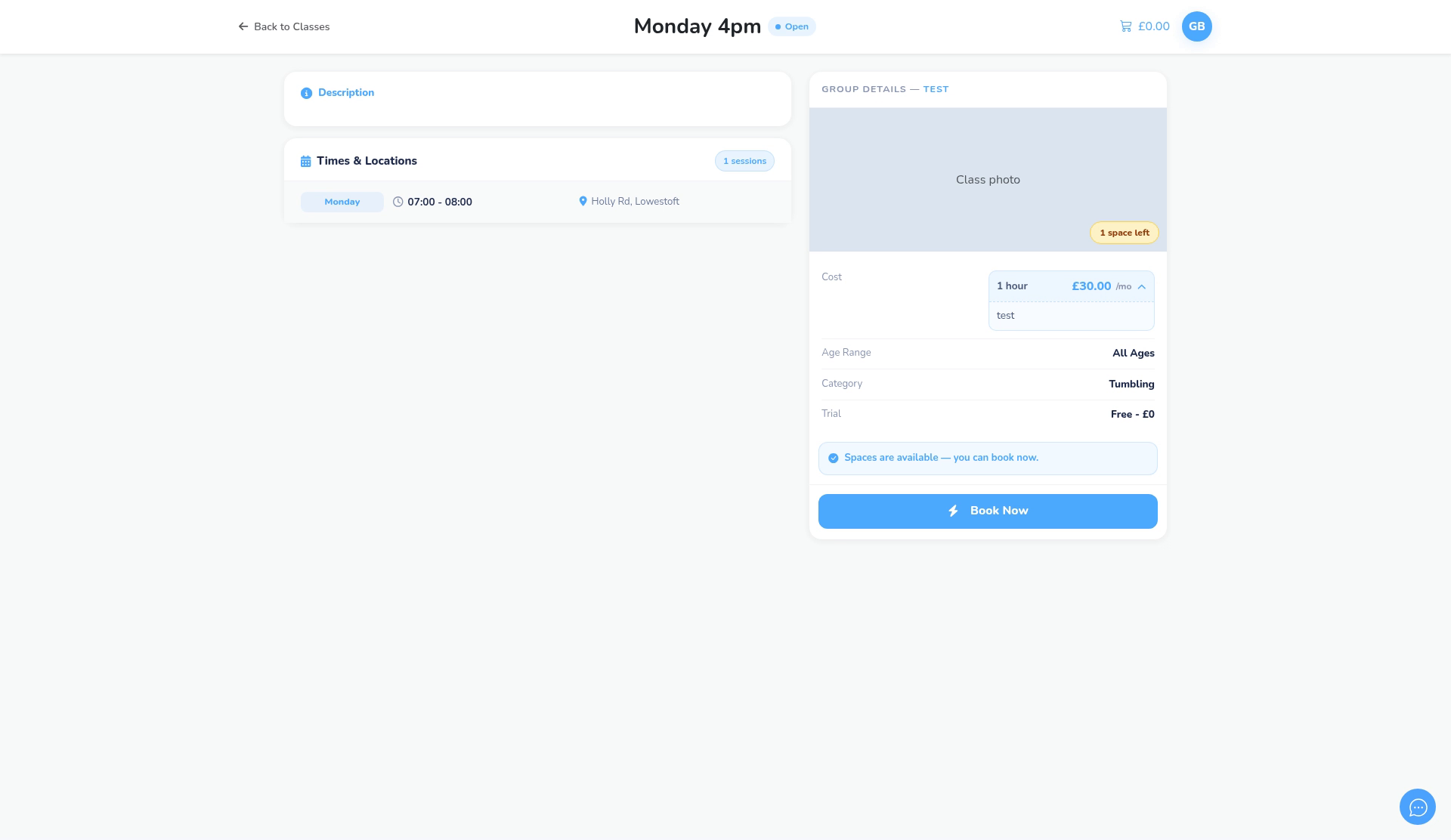
Step 1: Open the class and click Book Now (0:00) #
- Parents normally find the class in your club’s class list and open it.
- The class page shows the cost, age range, category and the Trial price (for example Free – £0). They click Book Now.
Step 2: Choose who’s attending (0:12) #
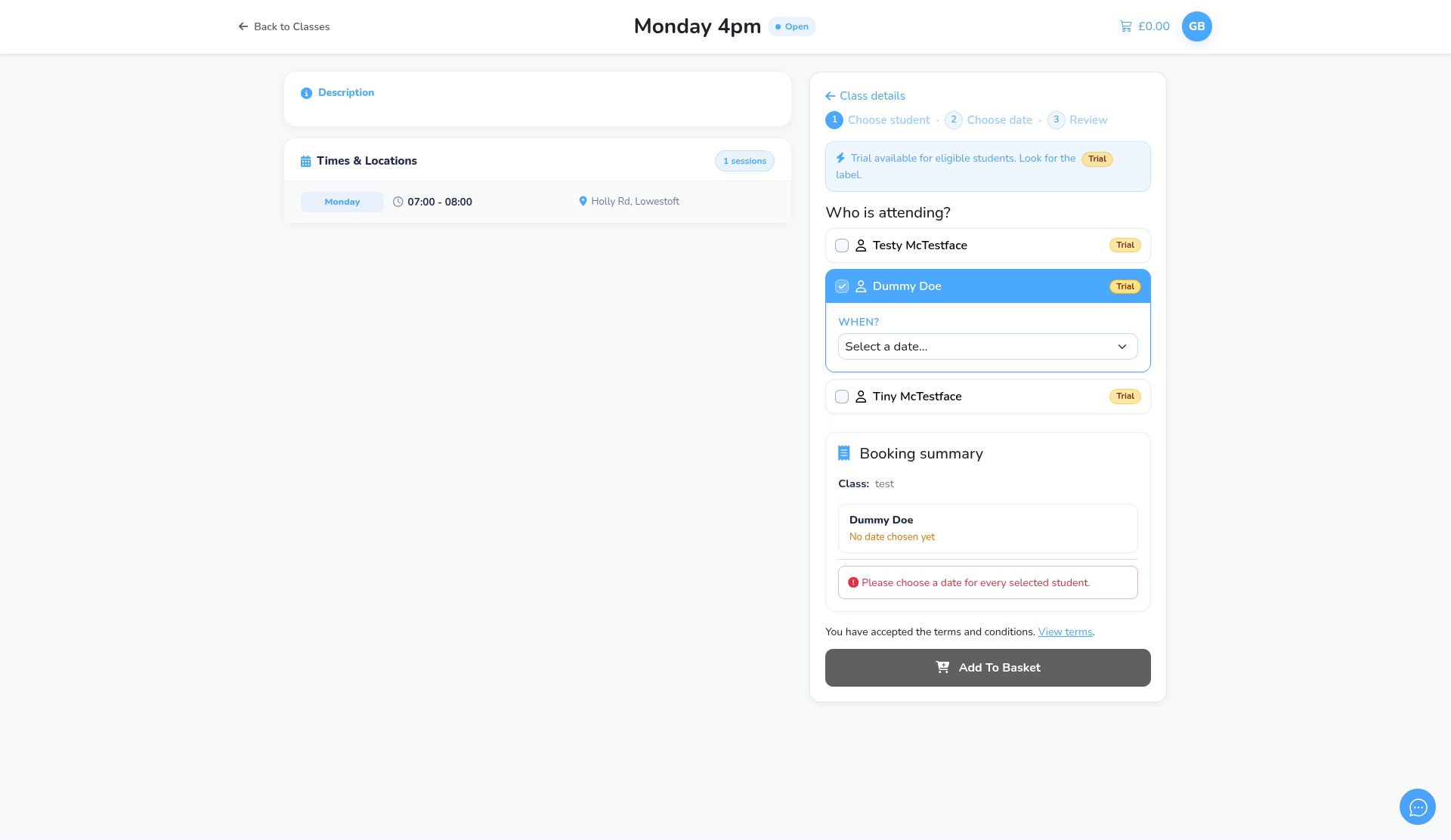
- Under Who is attending?, they tick one or more children. Children who can book a trial show a Trial label.
Step 3: Pick the trial date and add to basket (0:20) #
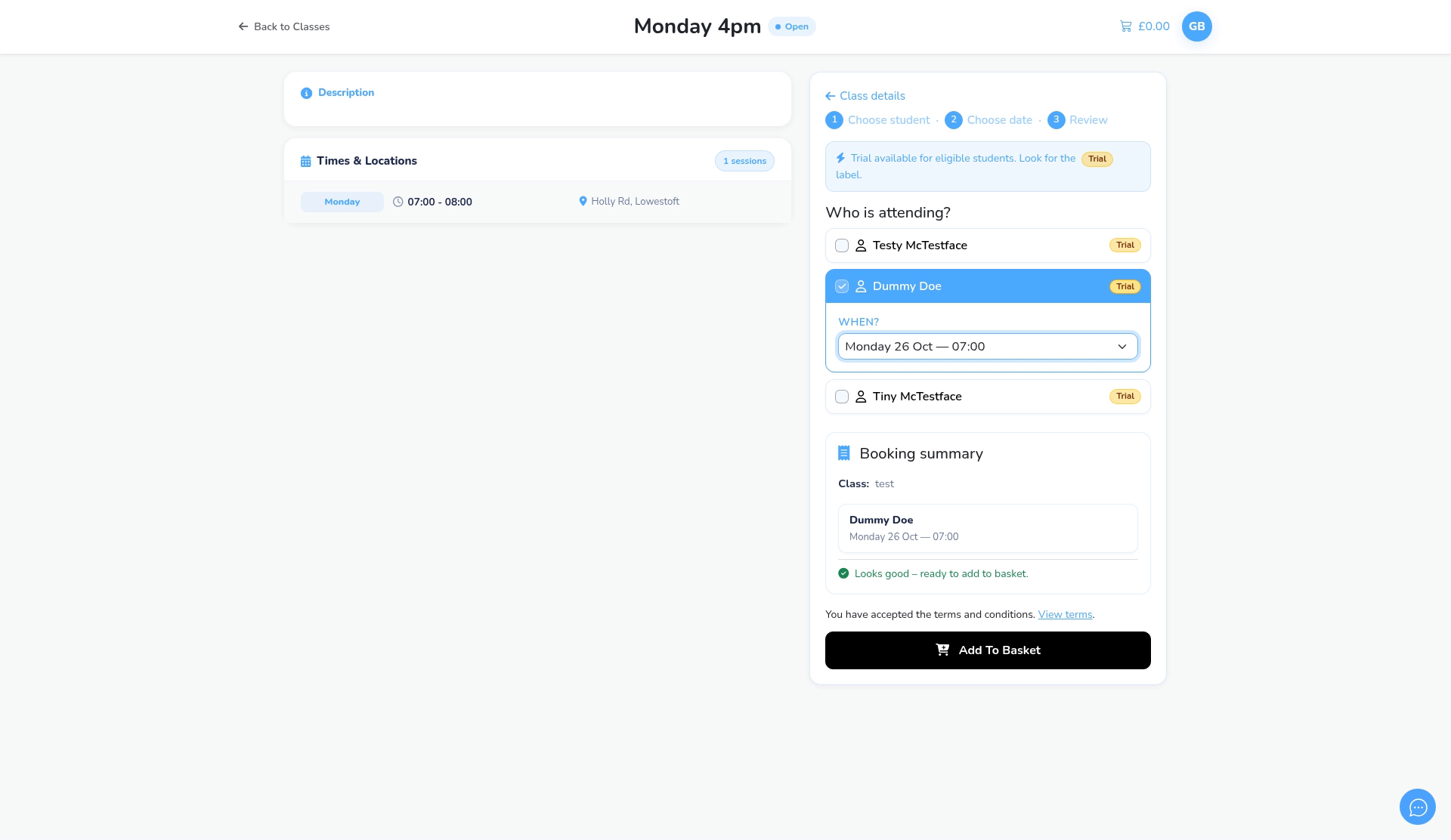
- Under When?, they pick the trial session for each child.
- The Booking summary shows each child and date. When it says Looks good – ready to add to basket, they click Add To Basket.
Basket and checkout #
- After Add To Basket, the parent opens the basket (top right), checks the trial and goes to checkout.
- A free trial is confirmed without payment. A paid trial asks for card payment at checkout.
- Once it’s booked, the parent gets the Trial Confirmed email (or Term Trial Confirmed for term classes). Edit these under Settings Hub > Email Templates.
Good to know #
- Children outside the class’s age range can’t be ticked.
- The trial price is set on the class group.


